Private connection flow
Move from official player to the supplied login method and one controlled playback test.
Setting IPTV up is straightforward when you make four decisions in the right order: choose the primary device, install a compatible player from an official source, use the exact connection method supplied for your access, and test one stream before changing advanced settings. This guide connects those steps across Smart TV, Firestick, Android TV, iPhone, Windows, and Mac while keeping usernames, passwords, and playlist URLs private.
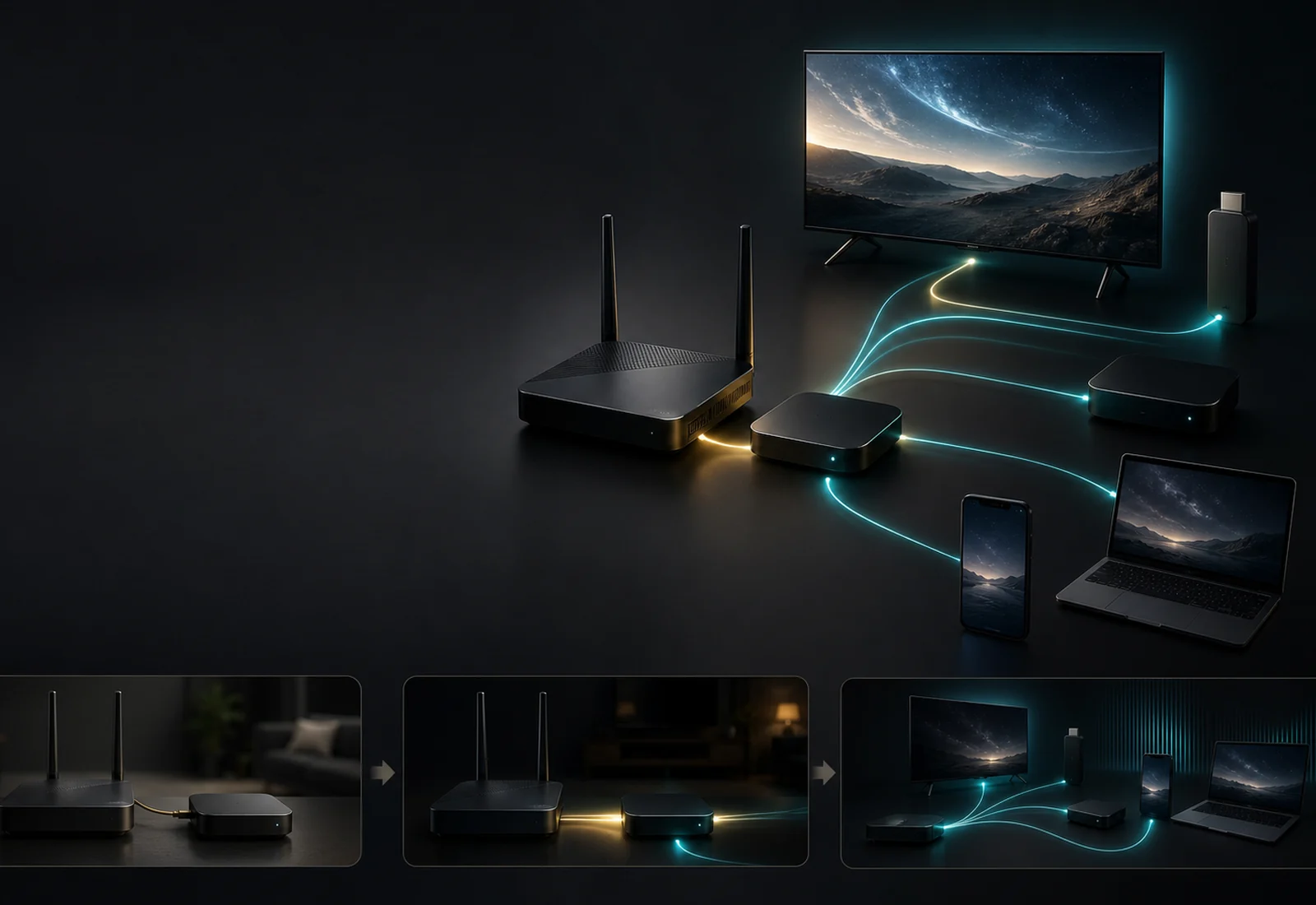
Move from official player to the supplied login method and one controlled playback test.
Choose Smart TV, television player, mobile, or computer guidance without mixing menus.
Protect access values, change one variable at a time, and record customer-safe evidence.
A few minutes of preparation prevents most avoidable setup confusion.
Write down the exact television, streaming player, phone, tablet, or computer you plan to use. A television brand alone may not identify its operating system, and two models from the same brand can use different app stores. The primary screen should be the one you will use most often because it gives the most meaningful trial result.
Confirm that the device receives operating-system updates, has enough free storage for a player, and can reach a stable home network. If a television app choice is limited, a supported Fire TV or Android TV player may be a more flexible living-room option.
A compatible player may ask for a complete M3U playlist URL. Another may ask for a server address, username, and password in an Xtream-style form. Some television applications use their own activation workflow. Use only the format supplied for your trial or subscription and the instructions for the selected player.
Do not paste credentials into a search engine, public forum, untrusted converter, or screenshot shared publicly. A complete playlist URL is a credential because it can contain the username and password.
IPTV FREE TRIAL supplies access and guidance; a third-party player is the software that presents it on the device.
Open the application store built into the device or the player publisher’s verified website. Check the app name, publisher, compatibility, price or separate player licence, and recent platform support. IPTV FREE TRIAL does not distribute modified players, unknown APK files, or bypassed paid applications.
After installation, open the player before entering access details. Review the login choices and select the one that matches the delivered method. If the labels do not match, return to the device guide instead of placing values into arbitrary fields.
Some applications charge a one-time or recurring player fee. That fee belongs to the application publisher and is separate from the IPTV subscription. A player purchase does not create IPTV access, extend a trial, or change the simultaneous-stream limit.

Accuracy matters more than speed during the first login.
Copy each field exactly, without leading or trailing spaces. Keep the server scheme and port if one is present. Use a simple private profile name that identifies the service without embedding the password. Submit once and allow the player time to load the enabled categories.
If authentication fails, compare the characters carefully and confirm the trial or subscription is still active. Do not repeatedly create profiles with slightly different values because that makes troubleshooting harder.
Paste the full URL into the player’s M3U or playlist field, not into a public browser search. Some players also accept a separate programme-guide URL where one is supplied. Keep both URLs private. A player may need a manual content or EPG refresh after the first successful load.
Start with a controlled check before changing many settings.
Choose one enabled live category, wait for playback, and check picture, audio, controls, and sustained viewing. Then try one on-demand item where available and inspect category navigation, search, and programme-guide behavior. The source, player, device decoder, display, and network all affect the result.
During a 24-hour trial, repeat the test at a household viewing time. Compare Wi-Fi and Ethernet where practical. A brief speed test does not reveal every source route, device limitation, interference pattern, or background download.
An installable-device allowance does not mean every configured device may stream together. Begin with one active stream. Add another only when the selected plan explicitly supports the required simultaneous use.
The same access can feel different on a remote, touch screen, or desktop interface.
A Smart TV guide focuses on the television’s operating system, app store, remote navigation, storage, and network connection. Firestick and Android TV guides cover HDMI connection, device power, store installation, remote controls, and player permissions. Use the dedicated guide because menu names and app availability differ.
On iPhone, check App Store provenance, local-network permission where relevant, mobile data use, orientation, and AirPlay behavior if you plan to use it. On Windows or Mac, install from an official publisher, keep the operating system updated, and avoid leaving playlist files in a shared download folder.
Change one variable at a time so the result tells you something.
Confirm the device is online, the access window is active, the connection format matches the player, and every value was copied exactly. Restart the player once, then try the same approved credentials on another compatible device only if the trial and stream limit permit it. Record the safe error text and time.
Never send a password or complete playlist URL in a public support post. The request or order number, device, player name, operating-system version, network type, and safe error message are normally the useful starting points.
Try one stream, close background downloads, compare another category, restart the player, and test a wired connection where practical. If only one source is affected, report the category and time. If every source is affected on one device, compare the same access on another approved device before changing decoder options.
A working setup still needs basic account care.
Use a screen lock where available, avoid exporting profiles into shared storage, and remove the account from a device you sell or give away. Do not include credentials in cloud notes that other people can access. If access appears to be used unexpectedly, contact support with the order or trial number.
Keep the player and device updated, but avoid a major app change immediately before time-sensitive viewing. Check the renewal policy and private order status rather than assuming access renews automatically.
These answers explain the current customer journey without turning variable content or playback conditions into guarantees.
You need a supported device, stable internet connection, compatible player from an official source, and the private connection format supplied for your active trial or subscription.
Use the method supported by the selected player and supplied with your access. Do not convert or publish the credentials through an untrusted service.
Check the access window, active-stream limit, network, device decoder, player, and more than one enabled source. Record safe error details if support is needed.
The live plan shows installable devices separately from simultaneous streams. Configure and use devices within both published limits.
No. Install players only from official application stores or verified publisher sources.
The 24-hour trial lets you check the exact setup without creating a paid order.